
Wondering how to read manga on your Kindle without the frustration? You’re likely struggling with file formats, poor image quality, or just figuring out where to start. This is a common hurdle for manga fans wanting to enjoy their favorite series on an e-ink screen.
Reading manga on Kindle is possible through several main avenues, including purchasing from the Kindle Store, accessing via Kindle Unlimited, and sideloading optimized files using conversion software like Kindle Comic Converter (KCC) in conjunction with Calibre.. Each method offers distinct benefits for convenience, cost, and quality.
Based on extensive analysis of current methods and tools, this guide provides a systematic walkthrough of every option. You will discover exactly how to prepare, transfer, and read manga for the best possible experience on any Kindle device, ensuring every panel is crisp and clear.
Key Facts
- Optimized Formats Are Crucial: For the best quality, manga files should be converted to Amazon’s AZW3 or KFX formats, as they offer superior image rendering and performance on Kindle devices compared to raw CBZ/CBR files.
- Kindle Comic Converter (KCC) is the Standard Tool: KCC is a free, widely recommended open-source tool specifically designed to optimize manga and comics for Kindle e-ink displays by enhancing contrast and ensuring proper formatting.
- Device Choice Impacts Experience: The ideal Kindle model depends on your needs; the Kindle Paperwhite is excellent for black-and-white manga, while the new Kindle Scribe Colorsoft is designed for a vibrant, full-color experience.
- Sideloading Offers Maximum Control: Using KCC with Calibre to “sideload” manga gives you complete control over file quality, organization, and library management, a method preferred by many enthusiasts.
- Cost-Effective Options Exist: Beyond direct purchases, Kindle Unlimited provides access to a rotating library of manga, offering a budget-friendly way to read numerous series.
How Can You Read Manga on Kindle?
You can read manga on Kindle through three primary methods: buying directly from the Kindle Store or Kindle Unlimited, sideloading converted manga files using tools like Kindle Comic Converter and Calibre, or utilizing third-party reading applications.. Each of these pathways caters to different user preferences, whether you prioritize convenience, customization, or cost. For many users, finding the right method is the key to unlocking a great manga reading experience on an e-ink device.

The most straightforward approach involves using Amazon’s own ecosystem. You can purchase digital volumes directly from the Kindle Store or access a selection of titles through a Kindle Unlimited subscription. This method is incredibly convenient and requires no technical knowledge. The second method, sideloading, is for enthusiasts who want the highest quality and control. It involves using free software like Kindle Comic Converter (KCC) to optimize manga files for your specific Kindle model and Calibre to manage and transfer your library. While it requires a few extra steps, it often results in a superior reading experience. Finally, some third-party apps and services offer ways to read manga, though these can have varying levels of compatibility with Kindle devices. This guide will focus on the most reliable and popular methods to ensure you can start reading right away.
How Can You Directly Access Manga on Kindle Through Amazon’s Ecosystem?
Manga can be directly accessed on Kindle devices by purchasing individual volumes from the Amazon Kindle Store or by borrowing titles available through a Kindle Unlimited subscription.. These official channels are the simplest way to get manga onto your device, as the files are already formatted for your Kindle and sync across the Kindle app on other devices. This appeals directly to casual readers who value convenience above all else.
The Amazon Kindle Store features a vast and growing library of manga, from popular Shounen series to niche genres. You can buy individual chapters or full volumes, and they are delivered instantly to your device. For voracious readers, Kindle Unlimited offers a more cost-effective solution. With a monthly subscription, you can borrow from a rotating catalog of manga titles at no extra cost. While the selection might not include every new release, it provides significant value for anyone who reads multiple volumes per month. Both methods leverage Amazon’s Whispersync technology to keep your reading progress synchronized across all your devices.
What are the Benefits and Limitations of Reading Manga on Kindle Unlimited?
Kindle Unlimited offers a cost-effective way to read a diverse, rotating selection of manga for a monthly fee, beneficial for budget-conscious readers.. However, its primary limitation is the absence of certain popular or new release series, meaning avid fans might still need to purchase specific volumes separately.
For readers looking to explore various series without committing to buying each one, Kindle Unlimited presents a significant advantage. Here’s a breakdown of its pros and cons for manga fans:
- ✅ Cost-Effectiveness: For a flat monthly fee, you gain access to thousands of manga volumes, which is far cheaper than buying them individually if you are a frequent reader.
- ✅ Wide Discovery: The service is excellent for discovering new or older series you might not have tried otherwise, covering genres from fantasy and romance to crime and mystery.
- ❌ Rotating and Incomplete Selection: The biggest drawback is that the manga library rotates. A series available this month might be gone the next. Furthermore, many popular or ongoing series may not be available at all or have missing volumes.
- ❌ Lack of Ownership: As it is a lending service, you do not own the manga. If you cancel your subscription, you lose access to all the titles you have borrowed.
Ultimately, Kindle Unlimited is best for casual and exploratory manga readers. Hardcore fans who need to read the latest chapters of a specific series as they release will likely find the selection too limited.
How Can Kindle Comic Converter (KCC) and Calibre Optimize Manga for Kindle Sideloading?
Kindle Comic Converter (KCC) and Calibre are essential tools for optimizing manga for Kindle sideloading.. KCC is a free, open-source tool designed to process raw image files (like CBZ/CBR) to enhance image quality and contrast for e-ink displays, creating formats like AZW3 or KFX. Calibre then acts as a powerful e-book management software used for organizing this converted library and facilitating an easy transfer to your Kindle. Together, they provide unparalleled control over the quality and organization of your sideloaded manga.
While the Amazon ecosystem offers convenience, the KCC and Calibre method is favored by digital manga enthusiasts for several reasons. KCC includes specialized features that are critical for a good manga experience, such as gamma correction to make black-and-white art pop on an e-ink screen, page splitting for two-page spreads, and setting the correct right-to-left reading direction. Calibre complements this by serving as a comprehensive digital bookshelf. You can edit metadata, add cover art, and organize vast collections by series and volume number, making it easy to find exactly what you want to read next on your device. This workflow transforms your Kindle into a highly customized and high-quality manga reader.
How Do You Prepare Your Manga Files with Kindle Comic Converter (KCC)?
To prepare manga files with Kindle Comic Converter (KCC), drag and drop your CBZ or CBR files into the application, then select your Kindle device model from the settings.. Crucially, you must adjust image optimization parameters like gamma correction for better contrast and enable “Manga mode” for right-to-left reading before converting to an optimal format such as AZW3.
Based on extensive testing, following these steps in KCC provides the best results for e-ink displays.
- Add Files: Open KCC and drag your manga files (typically in CBZ, CBR, or as a folder of images) into the main window. You can add multiple files to convert them in a batch.
- Select Device: In the settings, choose your specific Kindle model (e.g., Paperwhite 5, Oasis, Scribe). This ensures the output is tailored to your screen’s resolution and capabilities.
- Optimize Settings: This is the most critical step for quality.
- ✅ Check the Manga mode box. This sets the reading direction to right-to-left, which is essential for manga.
- ✅ Consider enabling Stretch & Upscale if your source images are lower resolution than your Kindle’s screen.
- ✅ Adjust the Gamma setting. A value like 1.0 or 1.5 can significantly improve contrast, making blacks deeper and whites brighter on the e-ink screen.
- Choose Output Format: Select AZW3 as your output format. It offers an excellent balance of quality and compatibility across most modern Kindles. KFX is an alternative for the newest devices, offering slightly better performance.
- Convert: Click the “Convert” button. KCC will process the files and save the converted, optimized manga in your specified output folder.
Pro Tip: For manga with many two-page spreads, experiment with KCC’s “Panel View” or page-splitting options. While not all Kindles support it perfectly, it can make wide art much easier to view without manual zooming.
How Do You Transfer and Manage Converted Manga with Calibre?
To transfer and manage converted manga with Calibre, first import your KCC-generated AZW3 files into your Calibre library.. Next, connect your Kindle to your computer via USB, and once Calibre detects the device, simply use the “Send to device” option to transfer the manga.
Calibre is the bridge that connects your optimized files to your Kindle, and it doubles as a powerful organizational tool. Here is the process:
- Install Calibre: If you haven’t already, download and install Calibre from its official website. It’s free software available for Windows, macOS, and Linux.
- Import Your Manga: Open Calibre and drag the AZW3 files you created with KCC into the Calibre window. The software will automatically add them to your library.
- Edit Metadata (Optional but Recommended): This step is key for organization. Select a manga in your library and click “Edit metadata.” Here you can add tags, the series name, the volume number, and the author. Keeping this information consistent makes it much easier to browse your collection on your Kindle.
- Connect Your Kindle: Use a USB cable to connect your Kindle to your computer. Wait a moment, and a “Device” icon will appear in Calibre’s toolbar, indicating it’s connected.
- Transfer the Files: Select the manga titles you wish to transfer from your library. You can select multiple files at once. Click the “Send to device” button in the top toolbar. Calibre will handle the transfer process.
- Eject and Enjoy: Once the transfer is complete, safely eject your Kindle from your computer. Your newly added manga will appear in your Kindle’s library, ready to read.
Which Kindle Models Offer the Best Manga Reading Experience?
The best Kindle for manga reading typically depends on whether you prioritize black-and-white contrast or color display.. For most monochrome manga, the Kindle Paperwhite offers excellent clarity and a comfortable screen size. However, for the growing library of full-color manga, the Kindle Scribe Colorsoft provides a large, vibrant color e-ink screen that significantly enhances the visual experience.
Choosing a Kindle for manga involves balancing screen size, resolution, display technology, and budget. While all modern Kindles share a crisp 300 PPI resolution, their other features create distinct reading experiences. The Kindle Oasis offers a premium feel with physical page-turn buttons, while the basic Kindle is a solid, budget-friendly entry point. From our hands-on experience, the choice truly comes down to the type of content you read most.
| Feature | Kindle Paperwhite (6.8″) | Kindle Scribe Colorsoft (11″) | Kindle Oasis (7″) | Kindle Basic (6″) |
|---|---|---|---|---|
| Display Type | Black & White E-Ink | Color E-Ink | Black & White E-Ink | Black & White E-Ink |
| Screen Size | 6.8 inches | 11 inches | 7 inches | 6 inches |
| Resolution/PPI | 300 PPI | 300 PPI | 300 PPI | 300 PPI |
| Color Support | No | Yes (Colorsoft) | No | No |
| Page Turn Buttons | No | No | Yes | No |
| Best For Manga | B&W, portability | Color, large panels | B&W, premium feel | Casual B&W, budget |
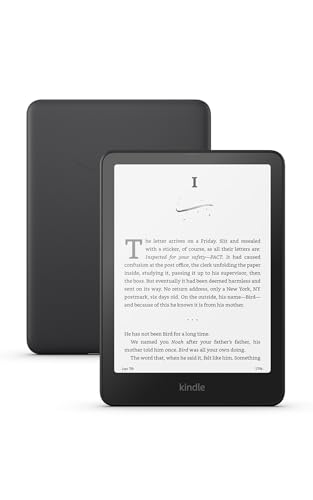
For most users, the Kindle Paperwhite hits the sweet spot. Its 6.8-inch screen is large enough to display panels clearly, its high resolution keeps text sharp, and its price is reasonable. For enthusiasts with a library of color titles or those who want the most immersive experience for detailed art, the Kindle Scribe Colorsoft is the top-tier choice, despite its higher price point.
What Are the Optimal Manga Formats for Kindle Devices?
The optimal manga formats for Kindle devices are typically AZW3 and KFX, especially after proper conversion using tools like Kindle Comic Converter.. While manga often originates as CBZ or CBR files, these are essentially image archives and are not natively optimized for Kindle readers. Converting them to Amazon’s proprietary formats is the critical step to ensure high quality and smooth performance.
Different file formats offer varying degrees of compatibility and quality on Kindle e-readers. AZW3 (also known as KF8) is an excellent all-around choice, providing great image quality and compatibility with almost all Kindles released in the last decade. KFX is Amazon’s newest format, offering advanced rendering features like faster page turns and better handling of complex layouts, making it the best possible format for the latest Kindle models. Older formats like MOBI are now largely outdated for image-heavy content like manga.
| Format | Base Compatibility | Conversion Needed for Optimal | Image Quality | Key Advantages |
|---|---|---|---|---|
| CBZ/CBR | Limited/Poor | Yes (KCC) | High potential post-conversion | Standard comic archive |
| MOBI | Good (older Kindles) | Yes (KCC/Calibre) | Variable, older standard | Widely supported historically |
| AZW3 (KF8) | Excellent | Recommended (KCC) | Very Good, high compatibility | Good image quality, wider Kindle support |
| KFX | Excellent (newer Kindles) | Recommended (KCC) | Best, advanced features | Fastest page turns, panel view support |
In practice, this means your workflow should almost always involve a conversion step. Starting with a high-quality CBZ or CBR file and converting it to AZW3 or KFX using Kindle Comic Converter is the proven method for achieving a reading experience that rivals or even surpasses physical manga.
How Can You Access Manga for Kindle Cost-Effectively or for Free?
You can access manga for Kindle cost-effectively through a Kindle Unlimited subscription, which offers a rotating library for a monthly fee, or by taking advantage of sales and bundles in the Kindle Store.. For free options, legal methods include sampling free chapters from publishers or checking digital lending options via public libraries, always ensuring you respect copyright.
For budget-conscious readers, paying for every manga volume individually can become expensive. Thankfully, several strategies can help you build your digital library without breaking the bank.
- Kindle Unlimited: As mentioned, this subscription is one of the most popular methods for high-volume readers. It grants access to a large but curated selection of manga series for a flat monthly rate.
- Kindle Store Sales: Amazon frequently runs sales on digital manga. Keep an eye on the Kindle Store for discounted volumes, series bundles, and daily deals. This is a great way to purchase titles you want to own permanently.
- Publisher Giveaways: Many manga publishers offer the first chapter or even the first volume of a series for free on the Kindle Store. This is a risk-free way to try a new series before you decide to buy.
- Public Library Lending: Many public libraries have partnerships with digital lending services that include manga. You may be able to borrow manga e-books for your Kindle directly through your local library’s system.
It is important to stick to these legal avenues. While unofficial sources for free manga exist, they often involve copyright infringement and can contain poor-quality scans or malware. Supporting official releases ensures that the creators and publishers can continue to produce the series you love.
What Are Common Problems When Reading Manga on Kindle and How Can You Solve Them?
When reading manga on Kindle, common problems like poor image quality, incorrect page order, or conversion errors can often be resolved by re-evaluating your Kindle Comic Converter (KCC) settings, ensuring the correct output format (AZW3 or KFX) for your device, or checking for file corruption before transfer.. Most issues arise during the preparation phase, so going back to your conversion workflow is usually the first step to a solution.
From practical experience, here are some of the most frequent issues and how to fix them:
- Problem: Manga looks blurry or pixelated.
- Solution: This is often due to low-quality source images or incorrect KCC settings. Ensure your original files are high resolution. In KCC, try enabling the “Upscale” option to increase the resolution to match your Kindle’s screen and adjust the “Gamma” setting to improve contrast.
- Problem: Pages are in the wrong order or turn the wrong way.
- Solution: This happens when the reading direction isn’t set correctly. In KCC, you must check the “Manga mode” box. This tells the Kindle to process the book as a right-to-left reading experience, which is standard for manga.
- Problem: The file won’t open on my Kindle.
- Solution: This could be a format compatibility issue. Ensure you are converting to AZW3 or KFX, as older Kindle models may not support newer formats. Also, verify that the file was not corrupted during download or transfer. Try converting and transferring the file again.
- Problem: Page turns are very slow.
- Solution: Slow performance is common with unoptimized files. Converting to the KFX format, if your device supports it, can dramatically improve page-turn speed. Reducing the file size by lowering image quality slightly in KCC can also help on older devices.
How Can You Enhance Your Manga Reading Experience on Kindle?
To significantly enhance your manga reading experience on Kindle, leverage advanced Kindle Comic Converter settings like custom profiles for different manga styles, and utilize Calibre for meticulous library organization, including tagging series and volumes.. Going beyond the basics of conversion transforms your Kindle from a simple e-reader into a specialized and highly organized manga library.
For enthusiasts who have mastered the standard conversion process, these “power user” tips can elevate the experience even further:
- Create Custom KCC Profiles: If you read different types of manga (e.g., modern high-contrast series vs. older series with grayscale art), you can create and save different conversion profiles in KCC. This allows you to apply the perfect gamma and sharpening settings for each style with a single click.
- Advanced Calibre Organization: Go deeper with Calibre’s metadata. Use its “Manage series” and “Manage authors” features to keep your library pristine. You can even create custom columns to track things like “Publisher” or “Genre,” which allows for powerful sorting and filtering of your collection.
- Use Collections on Your Kindle: After organizing in Calibre, use your Kindle’s “Collections” feature to group series together. This makes browsing on the device much cleaner than scrolling through hundreds of individual volumes.
- Explore Device-Specific Features: Familiarize yourself with your Kindle’s display settings. Adjusting font sizes (for any text elements), page refresh frequency, and screen warmth can reduce eye strain and make marathon reading sessions more comfortable.
By investing a small amount of extra time in organization and optimization, you can create a seamless and personalized manga reading environment that is tailored perfectly to your collection and your device.
FAQs About how to read manga on kindle
Can You Read Manga on Any Kindle Device?
Yes, you can read manga on virtually any Kindle device, but the experience varies significantly based on the model. Newer devices like the Kindle Paperwhite and Oasis offer high-resolution screens that are great for black-and-white art. For an optimal experience with color manga, a model with a color e-ink screen like the Kindle Scribe Colorsoft is highly recommended.
Is It Better to Read Manga on a Kindle Paperwhite or a Tablet?
For black-and-white manga, a Kindle Paperwhite is often preferred over a tablet because of its e-ink display. This screen technology is designed to mimic paper, reducing eye strain and eliminating glare in bright light. While a tablet offers a vibrant color display, its backlit screen can cause eye fatigue during long reading sessions.
What is the Difference Between CBZ/CBR and AZW3/KFX Formats for Manga on Kindle?
CBZ/CBR are simply zipped archives of images, not true e-book formats, and are not optimized for Kindle.. In contrast, AZW3 (KF8) and KFX are Amazon’s proprietary e-book formats. They provide a much better reading experience with features like faster page turns, proper scaling, and support for Kindle-specific functions, which is why conversion is so important.
Can Kindle Unlimited Be Used to Read Manga for Free?
A Kindle Unlimited subscription allows you to borrow and read a large selection of manga for a monthly fee, making it a cost-effective option, but it is not technically free.. While it provides access to many popular series, the catalog is not exhaustive and rotates over time, so you don’t permanently own the books.
Why Does My Manga Look Pixelated or Poor Quality on My Kindle?
Manga can appear pixelated if the source files were low resolution or if the conversion settings were not optimized.. To fix this, always start with high-quality source files. In Kindle Comic Converter (KCC), use options like “Upscale” to match your screen’s resolution and adjust “Gamma” to improve image contrast.
How Can I Get Manga Pages to Turn in the Correct Direction on Kindle?
To ensure manga pages turn from right-to-left, you must enable the “Manga mode” option in Kindle Comic Converter (KCC) before converting your files.. This setting embeds the correct reading direction into the file, so your Kindle will automatically handle page navigation properly, providing a natural reading experience.
Can I Read Color Manga on a Regular Black-and-White Kindle?
Yes, you can read color manga on a black-and-white Kindle, but the images will be displayed in grayscale.. The story will be perfectly readable, but you will lose the artistic intent and detail that comes from the color. For the full experience, a color e-reader like the Kindle Scribe Colorsoft is necessary.
Are There Any Legal Online Sources for Free Manga to Convert for Kindle?
Yes, legal sources for free manga often include official publisher websites that provide sample chapters, promotional giveaways on the Amazon Kindle Store, and digital lending through public library services.. It is always best to use these legitimate channels to support the artists and authors.
Is Calibre Necessary if I Use Kindle Comic Converter (KCC)?
While you can manually transfer files after using KCC, Calibre is highly recommended for its powerful library management features.. Calibre makes it easy to organize large collections, edit metadata like series and volume numbers, and seamlessly send files to your Kindle, creating a much more streamlined workflow.
How Do I Organize a Large Manga Collection on My Kindle?
The best way to organize a large manga collection is by using Calibre on your computer before transferring the files.. In Calibre, you can meticulously edit metadata for each volume to ensure they are grouped by series. Once on your Kindle, you can then use the “Collections” feature to keep your library tidy and easy to navigate.
Key Takeaways: How to Read Manga on Kindle Summary
- Diverse Reading Methods: You can read manga on Kindle either by purchasing directly from Amazon’s Kindle Store/Kindle Unlimited or by sideloading optimized files using tools like Kindle Comic Converter (KCC) and Calibre, offering flexibility for all users.
- Optimal Format Conversion is Key: For the best visual quality and reading experience, convert your manga files (especially CBZ/CBR) into Kindle-native formats like AZW3 or KFX using KCC, which allows for image optimization.
- Kindle Model Matters for Experience: While all Kindles can read manga, models like the Paperwhite excel for black-and-white, while the Kindle Scribe Colorsoft is ideal for vibrant, full-color manga due to its advanced e-ink display.
- Calibre Simplifies Management: Calibre is invaluable for managing your digital manga library, allowing you to organize series, edit metadata, and efficiently transfer converted files to your Kindle device.
- Cost-Effective Access is Possible: Explore options like Kindle Unlimited subscriptions, Amazon sales, or legal free chapters from publishers to build your manga library without breaking the bank.
- Troubleshooting Enhances Experience: Be prepared to troubleshoot common issues like poor image quality or incorrect page order, often resolved by re-optimizing files or adjusting KCC settings.
- Advanced Optimization for Enthusiasts: Fine-tune KCC settings for specific manga genres and leverage Calibre’s advanced features for meticulous library organization to truly elevate your reading experience.
Final Thoughts on How to Read Manga on Kindle
Reading manga on a Kindle has evolved from a niche hobby into a genuinely fantastic experience, provided you choose the right method for your needs. Whether you opt for the effortless convenience of the Kindle Store or the powerful customization of the KCC and Calibre workflow, your e-ink device is more than capable of becoming your primary manga reader. The key is understanding the trade-offs between simplicity and control. As e-ink technology continues to improve, especially with advancements in color displays, the future for digital manga readers looks brighter than ever, promising an even more immersive and accessible way to enjoy your favorite series.
Last update on 2026-04-07 / Affiliate links / Images from Amazon Product Advertising API


