
Wondering what app is currently used to make
Several key apps are currently used by artists to create
Based on extensive analysis of current software and industry standards, this guide demystifies the options. You will discover exactly which
Key Facts
- Industry Standard: Clip Studio Paint is widely considered the industry-standard software for professional
manga creation, celebrated for its dedicated comic tools and used by many professional mangaka.- Free & Accessible Entry: Free
manga software like MediBang Paint and Krita offers a comprehensive suite of tools, empowering beginners to start creating digitalmanga without any initial financial investment.- Mobile Creation is Powerful: Dedicated apps for tablets, such as Procreate for iPad and ibisPaint X for Android and iOS, provide a powerful and portable workflow for creating
manga art on the go.- Structured Workflow: Making digital
manga is a process involving distinct steps—scripting, sketching, inking, screentoning, and lettering—all of which are streamlined by features within modernmanga art apps.- AI as a Tool, Not a Replacement: Emerging AI
manga generators can create art from text prompts, but they currently function more as inspiration tools rather than replacements for the narrative and artistic depth provided by human artists.
What App is Currently Used to Make Manga ? The Ultimate Guide for Artists 2026
The short answer is that many apps are currently used to make

The world of
What Are The Best Free Manga Apps For Beginners?
For beginners seeking the best free
From our experience testing free alternatives, these apps stand out because they specifically address the
- MediBang Paint: A fantastic all-around choice, renowned for its cross-platform compatibility (Windows, macOS, iPad, iPhone, Android). It comes packed with over 800 free brushes and tones, comic panel creation tools, and cloud storage to sync your work across devices seamlessly.
- ibisPaint X: A mobile-first powerhouse, especially popular among artists who draw on their phones or tablets. It boasts a staggering number of brushes and materials, an incredibly smooth drawing engine, and social features that let you record and share your drawing process.
- Krita: A professional-grade, open-source painting program available for desktop (Windows, macOS, Linux). While it has a steeper learning curve, it offers immense power and customization, including excellent brush engines and vector tools, making it a strong free alternative to Adobe Photoshop for comic art.
| Feature/Aspect | MediBang Paint | ibisPaint X | Krita |
|---|---|---|---|
| Price | Free | Free (ads/subscription to remove) | Free (Open Source) |
| Platforms | Windows, macOS, iPad, iPhone, Android | iPad, iPhone, Android | Windows, macOS, Linux |
| Key Strengths | Comic panel tools, cloud sync, vast free materials | Robust drawing engine, large brush library, touch optimization | Full desktop painting suite, customizable interface, strong community |
| Target User | Beginners, comic artists, cross-platform users | Mobile artists, illustrators | Desktop artists, open source enthusiasts |
How Does MediBang Paint Compare To Other Free Manga Tools?
MediBang Paint excels among free
Based on hands-on experience, the standout feature is its cloud integration. You can start a sketch on your iPad, ink it on your PC, and add tones on your phone, all within the same project file. This cross-platform compatibility is a huge benefit. Furthermore, MediBang Paint includes over 50 brushes and 800 pre-made tones and backgrounds specifically for
Which Free Apps Are Best For Manga On Mobile Devices (iPad, Android)?
The best free
ibisPaint X is a top choice due to its powerful drawing engine and massive library of over 20,000 brushes and materials, all perfectly optimized for touchscreens. Our hands-on testing on an iPad Pro with an Apple Pencil shows its performance is incredibly smooth, with excellent pressure sensitivity and stroke stabilization that helps create clean line art. Its recording feature, which turns your drawing process into a shareable video, is also a unique and popular feature within its active user community.
MediBang Paint also offers an excellent mobile experience with full cross-platform compatibility. Its interface is consistent across devices, so if you use it on PC, you’ll feel right at home on your tablet. It provides the same dedicated comic tools, like panel creators and a vast screentone library, making it a truly versatile free drawing app for
What Are The Top Paid & Professional Manga Apps For Advanced Artists?
The top paid and professional
Clip Studio Paint is celebrated for its specialized comic features, including unparalleled vector drawing tools, an extensive asset library, and 3D model integration for reference. From years of working with professional artists, it’s clear this software is built from the ground up for a comic production pipeline. It handles everything from page management for entire chapters to intricate screentone application with a level of efficiency that other programs can’t match. Its pen stabilization and brush engine are considered top-tier for creating crisp, expressive line art, a hallmark of
While not a dedicated comic app, Adobe Photoshop remains a powerhouse in a professional workflow, particularly for coloring, texturing, and final image manipulation. Many artists will do their line art and toning in Clip Studio Paint and then move to Photoshop for its advanced color grading tools, filters, and layer effects. For artists already subscribed to the Adobe Creative Cloud, it’s a versatile tool, but for pure
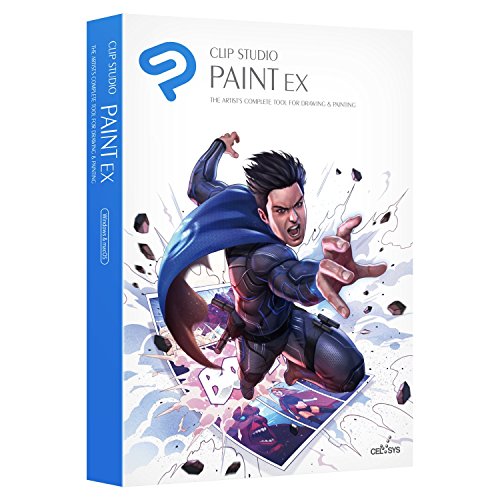
Why Do Professional Mangaka Prefer Clip Studio Paint?
Professional mangaka overwhelmingly prefer Clip Studio Paint due to its comprehensive and highly specialized feature set tailored specifically for an efficient
From practical implementation, several key features stand out:
- Superior Vector Layers: Unlike raster (pixel-based) lines, Clip Studio Paint’s vector lines can be resized, reshaped, and erased cleanly at intersections without losing quality. This allows artists to perfect their line art with incredible flexibility, which is a game-changer for professional quality.
- Extensive Screentone Library: The software includes a massive, customizable library of screentones, patterns, and materials. Applying, layering, and modifying these tones is an intuitive process, perfectly replicating the traditional
manga aesthetic digitally. - 3D Model Integration: Artists can import and pose 3D character models and backgrounds to use as references for complex angles, anatomy, and environments. This feature dramatically speeds up the process of drawing difficult poses and consistent backgrounds.
- Advanced Perspective Rulers: Creating accurate perspective is simplified with powerful ruler tools that snap your lines into place, ensuring backgrounds and objects look correct and three-dimensional.
- Comic-Centric Workflow Tools: Features like easy panel creation, page management for multi-page projects, and dedicated speech bubble tools are built directly into the software, streamlining a workflow that would be cumbersome in general illustration apps.
These tools, combined with a best-in-class brush engine, make Clip Studio Paint the most efficient and powerful solution for professional
How Does Procreate Compare To Clip Studio Paint For Manga On iPad?
For
Based on hands-on testing with both apps on an iPad Pro, the core difference lies in comic-specific features. Clip Studio Paint for iPad is the full desktop program adapted for a touch interface, meaning it has dedicated panel creation tools, a massive library of screentones, vector layers for clean line art, and 3D model support. This makes it the superior choice for an end-to-end
Procreate, on the other hand, is beloved for its minimalist interface and exceptional drawing feel, which many artists find more natural and responsive. It’s a one-time purchase, which is a significant advantage. However, creating
| Feature/Aspect | Procreate (iPad) | Clip Studio Paint (iPad) |
|---|---|---|
| Price | One-time purchase | Subscription-based |
| Comic Tools | Manual workarounds | Dedicated panel, speech bubble tools |
| Screentones | Requires manual import/creation | Extensive built-in library, easy application |
| Vector Layers | No native vector layers | Robust vector layers for clean line art |
| 3D Model Import | Limited/Plugin-based | Native support for pose/background reference |
| Animation | Basic animation assist | Advanced animation features |
| File Management | Simple gallery | Comprehensive page/project management |
| Target User | Illustrators, general artists | Manga/Comic artists, animators |
How Do AI Manga Generators Work, And Are They Replacing Artists?
AI
The technology behind these AI-powered generation tools is fascinating. You input a description like, “a shonen hero with spiky silver hair and a determined expression, holding a glowing sword,” and the AI scours its training data to generate an image that matches. While tools like Mangii can produce stunning individual images or character concepts, they struggle with one of the core tenets of
The debate over whether AI will replace artists is ongoing. At present, these generators are best viewed as powerful assistants or ideation tools. They can help an artist quickly visualize a character, generate background ideas, or experiment with different styles. They are not, however, a substitute for the unique vision, emotional storytelling, and artistic intent that a human mangaka brings to their work. Furthermore, the use of AI art raises significant ethical questions regarding copyright and the use of existing artists’ work in training data, which the art community continues to grapple with.
How Can You Make Digital Manga From Start To Finish?
Making digital
Here is a typical step-by-step guide to the
- Scripting and Storyboarding: Before you draw a single line, you need a story. Write a script for your page or chapter. Then, create rough “thumbnails” or storyboards—small, quick sketches that plan out the panel layout, character placement, and flow of action on each page.
- Page Setup and Paneling: In your
manga app, create a new page with the correct dimensions and resolution (e.g., 600 DPI for print). Use the paneling tool (or draw them manually) to create the borders for your comic panels according to your storyboard. - Sketching (Penciling): On a new layer, sketch the characters, backgrounds, and action within each panel. This is where you work out the composition and details. Don’t worry about clean lines; this is just the foundation.
- Inking (Line Art): Create a new layer above your sketch. Using a pen or brush tool with stabilization turned on, carefully trace over your sketch to create clean, final line art. This is often done on a vector layer in apps like Clip Studio Paint for maximum flexibility.
- Adding Screentones and Color: On separate layers beneath the line art, apply screentones to add shading, texture, and depth. This is a defining characteristic of
manga . You can also add flat colors or detailed paintings at this stage. - Lettering and Sound Effects: Add dialogue into speech bubbles using the text tool. Choose a font that is clear and fits the tone of your
manga . Draw or type in sound effects (onomatopoeia) to bring the action to life. - Final Review and Export: Look over the entire page for any errors. Once you are satisfied, export the page in the appropriate format. For web viewing (like Webtoon), you’ll likely export as a JPG or PNG. For printing, you’ll use a format like TIFF or PDF in CMYK color mode.
How Do You Add Screentones Digitally In Manga Apps?
Adding screentones digitally involves selecting a desired halftone pattern from your app’s material library, applying it to a specific area of your illustration, and then adjusting its properties like density and angle. Apps like Clip Studio Paint and MediBang Paint have dedicated tools that make this process much simpler than traditional methods.
Here’s a basic step-by-step process based on practical experience in most
- Create a Selection: First, you need to tell the app where to apply the tone. Use the lasso or magic wand tool to select the area on your artwork that you want to shade (e.g., a character’s hair or the shadow on their clothes). It’s crucial to do this on a layer below your clean line art to keep the tones from covering your lines.
- Choose a Tone: Open the material library in your app. Here you will find a vast selection of screentones with different dot patterns, densities (LPI – lines per inch), and styles. Drag and drop the desired tone onto your selected area.
- Apply and Adjust: The tone will fill the selection. Most apps create a “tone layer” with a mask. This is incredibly useful because it’s non-destructive. You can use an eraser on the layer mask to remove parts of the tone or a pen to add it back without permanently altering anything.
- Modify Properties: You can often change the tone’s properties after it’s been applied. This includes adjusting the frequency (dot size), density (darkness), and pattern angle to achieve different visual effects, such as creating a moiré pattern for dramatic effect.
A common mistake for beginners is applying tones directly to a raster layer. Always use tone layers or apply tones to a new layer set to multiply, as this provides the flexibility to make changes later.
How To Choose The Best Manga App For Your Needs?
To choose the best
Here is a simple framework to guide your decision:
- What is Your Budget? (Free vs. Paid)
- 💰 Zero Budget: If you’re just starting or have no budget, begin with free powerhouses like MediBang Paint or Krita. They are more than capable and will teach you the fundamentals of digital
manga creation. - 💱 One-Time Purchase: If you’re on an iPad and prefer a single payment, Procreate is an excellent choice for its amazing drawing feel, though it requires more manual comic setup.
- 💲 Professional Investment: If you are serious about creating
manga efficiently and at a professional level, the subscription or one-time purchase for Clip Studio Paint is a worthwhile investment for its unmatched comic-specific toolset.
- 💰 Zero Budget: If you’re just starting or have no budget, begin with free powerhouses like MediBang Paint or Krita. They are more than capable and will teach you the fundamentals of digital
- What is Your Skill Level? (Beginner vs. Advanced)
- 🔰 Beginner: Look for apps with a simple interface and good tutorials. MediBang Paint and ibisPaint X are excellent starting points.
- 🔱 Advanced: If you need professional-grade workflow tools, vector layers, and extensive customization, Clip Studio Paint is designed for you.
- What is Your Platform? (PC vs. Tablet)
- 💻 Desktop (Windows/macOS): Clip Studio Paint and Krita offer the most powerful desktop experiences.
- 🍎 iPad: The choice is primarily between Procreate (for drawing feel) and Clip Studio Paint (for comic features).
- 📲 Android Tablet/Mobile: ibisPaint X and MediBang Paint are the leading options with robust feature sets optimized for the platform.
- What Features Do You Need? (Illustration vs. Comics)
- 🎨 General Illustration: If you primarily draw single illustrations, the pure drawing engine of Procreate might be most appealing.
- 📖 Full Comic Production: If you plan to create multi-page comics with panels, screentones, and lettering, a specialized app like Clip Studio Paint will save you an immense amount of time and effort.
By answering these questions, you can move from a broad question of “what app should I use?” to a specific, confident choice that matches your personal situation.
FAQs About what app is currently used to make manga
What App Do Manga Artists Use To Draw Professionally?
Professional
Can You Make Manga On An iPad Or Android Tablet?
Yes, you can absolutely make
Is MediBang Paint Really Free And Good For Manga ?
Yes, MediBang Paint is completely free and is considered a very good option for creating
What Is The Official Shonen Jump App For Creating Manga ?
The official Shonen Jump app for creating
Can I Make Manga Without Any Drawing Skills Using AI?
Yes, AI
What Tablets Are Best For Drawing Manga ?
Drawing
What Is The Difference Between Raster And Vector Layers For Manga ?
Raster layers create images using pixels, offering rich detail and blending capabilities ideal for painting, while vector layers use mathematical paths, providing crisp lines that can be scaled infinitely without losing quality, making them superior for clean line art in
How To Export Manga For Webtoon Format Or Print?
To export
Is Krita Good For Comic Art And Manga ?
Yes, Krita is an excellent open-source and free digital painting program that is highly capable for comic art and
How Hard Is It To Learn Digital Manga Art?
The difficulty of learning digital
Key Takeaways: What App is Currently Used to Make Manga
- Diverse Tools for Diverse Needs: The apps currently used to make
manga range from powerful industry standards like Clip Studio Paint to accessible free options like MediBang Paint, catering to all skill levels and budgets. - Professional Standard: Clip Studio Paint: For professional-grade
manga , Clip Studio Paint remains the uncontested leader due to its specialized comic tools, vector capabilities, and comprehensive workflow integration. - Mobile-First Solutions for Portability: Apps like Procreate (iPad) and ibisPaint X (iOS/Android) offer robust features for
manga creation on tablets, providing flexibility for artists on the go. - Free Apps Empower Beginners: MediBang Paint and Krita are excellent free alternatives, providing essential tools and a supportive community for aspiring artists to start their digital
manga journey without cost. - AI for Ideation, Not Replacement: AI
manga generators offer innovative ways to create art without drawing skills, primarily serving as tools for inspiration or rapid concept generation rather than full artistic replacements, with ongoing ethical considerations.
Final Thoughts on What App is Currently Used to Make Manga
The landscape of
By understanding the distinct advantages of each tool and leveraging the comprehensive features they offer, aspiring and established mangakas alike can bring their stories to life with unprecedented efficiency and creative freedom. The journey into digital
Last update on 2026-04-19 / Affiliate links / Images from Amazon Product Advertising API


